Partner console: manage every client from one view
Deploy a client in 15 minutes; see them all in one place.
Applies to: Partners (IT providers, billing companies, consultants)
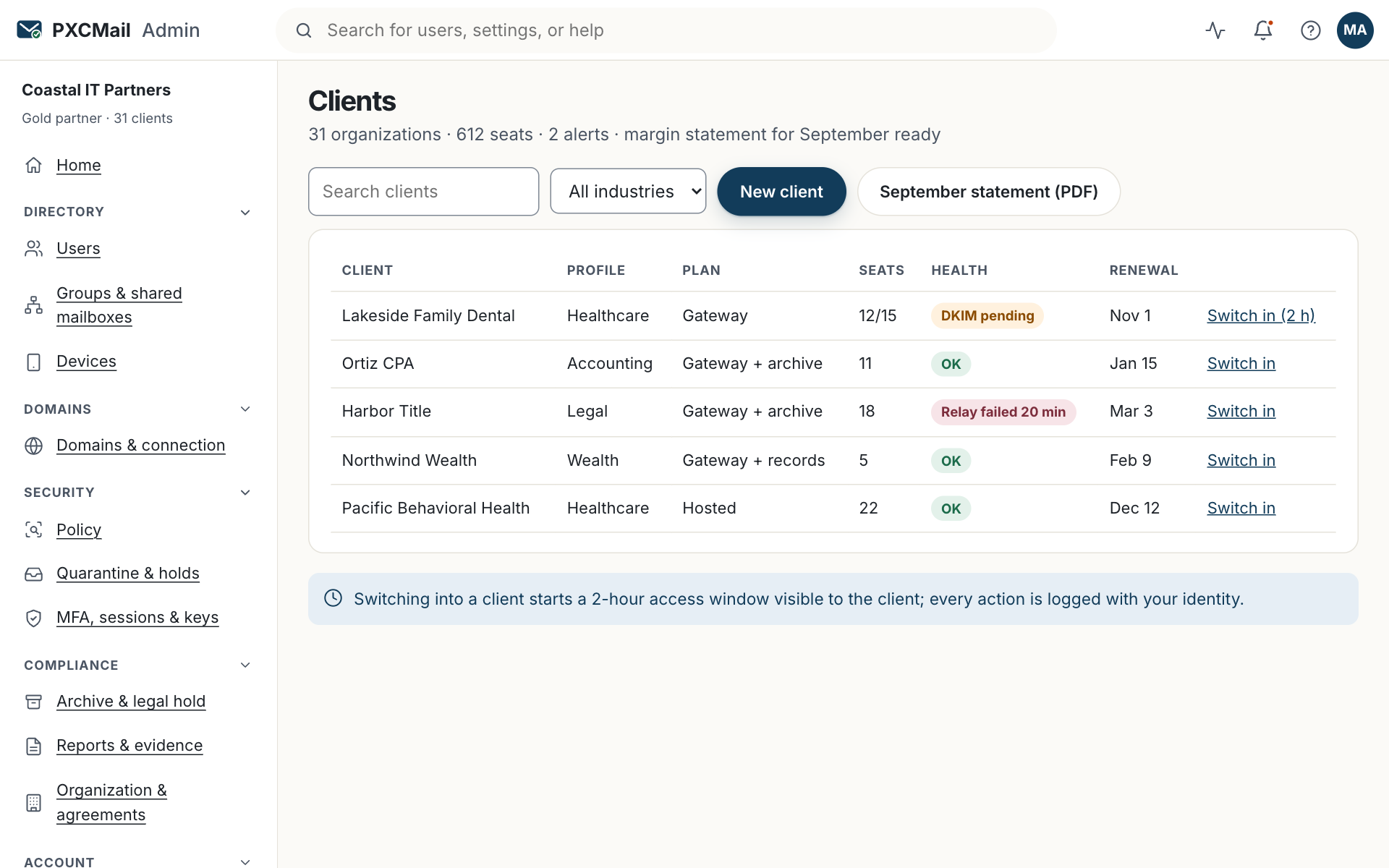
The partner view lists every client organization with DNS health, relay status, MFA coverage, seats, alerts and renewal dates. From it you provision new clients, switch into a client for a logged, time-limited session, and download monthly margin or bill-through statements.
Before you start
- Partner agreement signed and a Partner role on your own account.
- A decision per client: bill-through (you invoice the client) or payouts (the client pays PXCMail and you receive margin).
- Register the deal before you quote; registration is what the statement pays on.
- For each client: legal name, address, industry profile, plan, seat count and the email of the person who will sign the agreement.
Steps
- Partner view → Clients. Sort by health to see which tenants need attention: DNS drift, relay credential rotation due, users without MFA.
- New client: enter the organization details, profile and plan. The client’s Owner receives the BAA or addendum to sign; you receive the DNS records and connector steps. Nothing is charged until they sign.
- Deploy: add DNS, configure the Google route or Microsoft connector, send a test. Fifteen minutes per tenant is typical with a connector you already know.
- Switch into client: opens a session, 2 hours by default, with a banner the client can see. Every action is logged under your identity in the client’s audit log.
- Tune the client’s policy under Console → Policy inside the switched session. Each client has its own policy, test mode and versions.
- Statements: monthly margin (25 to 35 percent) or bill-through statements, plus the deal registration list.
- Alerts: route client alerts to your helpdesk address under Partner view → Settings.
Verify
The client shows status active once DNS and relay are green, and a test message appears in that client’s audit trail with TLS and scan results.
Troubleshooting
- Client stuck at “pending agreement”. Cause: the Owner has not signed. Fix: resend from the client card; you cannot sign on their behalf.
- Switch-in is refused. Cause: the window expired, or the client Owner restricted partner access. Fix: start a new session, or ask the Owner to re-enable access under Organization settings.
- Health shows amber for MFA. Cause: users signed in without MFA. Fix: switch in and require MFA under Security.
- Margin statement is lower than expected. Cause: a deal was not registered, or the client is on bill-through and appears on the other statement. Fix: check the registration list and billing mode.
- A client is leaving. Cause: offboarding. Fix: they can export everything within 30 days and receive a certificate of destruction; remove the relay and DNS records last.
Example
Coastal IT Partners manages dental and CPA clients. They register Lakeside Family Dental, a twelve-person office on Google Workspace, as a Hosted client on bill-through. The office manager signs the BAA that afternoon. Coastal adds the DNS records at Cloudflare, sets up directory sync, and switches in for an hour to enable the healthcare pack and add the office’s Dentrix notification address as an exception. At month end the Lakeside line appears on Coastal’s bill-through statement with their margin, and the client health card is green.
FAQ
Does the client see when I switch in?
Yes. A banner shows during the session and the audit log records every action with your name.
Does the client see my margin?
No. Margin and deal registration are between you and PXCMail.
Can I pull client data into my PSA or ticketing tool?
The audit API and webhooks on Hosted Pro cover audit events; see API. SCIM is ROADMAP.
Can I copy a policy from one client to another?
Each client’s policy is its own. Set it up once per tenant, using the industry template as the starting point.
Related
Still stuck? A human answers within 15 minutes on chat, 1 hour by email during business hours (24/7 for outages).