Custom patterns and keyword lists
Your own identifiers are often the most sensitive. Add them in minutes.
Applies to: Gateway, Hosted
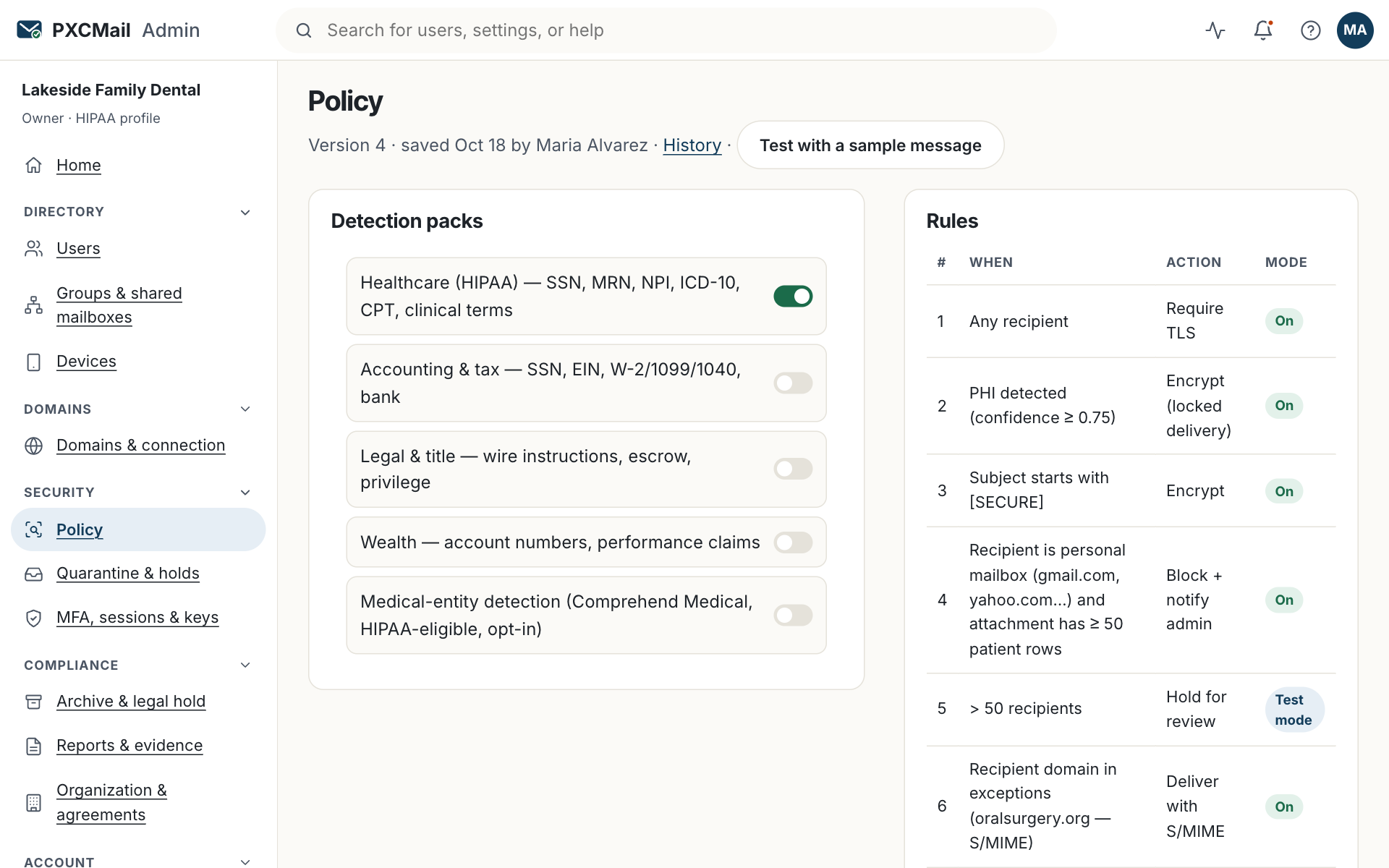
Under Console → Policy → Custom you add three kinds of detector the industry packs cannot know about: regular-expression patterns for your own identifier formats, keyword lists such as client names, and document fingerprints of your own forms. Each is tested against sample messages in the editor, then attached to a rule with one of the five actions.
Before you start
- Compliance role.
- Examples of the identifier with made-up values, plus a few near misses that should not match.
- For keyword lists, a CSV export from your practice or client software.
- For fingerprints, a blank copy of the form as you send it (PDF or Office).
- Room in your rule count: an organization can have up to 500 policy rules.
Steps
- Console → Policy → Custom → Pattern: name, regular expression, optional validator (checksum, date range, length), and a confidence level. Paste your examples into the tester and confirm the matches and the near misses.
- Keyword list: paste or upload a CSV (up to 10,000 entries); choose exact, whole-word or fuzzy matching; optionally sync hourly from a URL or your software’s export.
- Document fingerprint: upload the blank template. Filled copies are detected even when renamed or re-saved.
- Console → Policy → Rules → New: condition is the detector (alone or combined with a pack finding), scope is the recipient (external, specific domains), action is deliver, encrypt, warn, hold or block.
- Start the rule in test mode, read the matches in the audit trail, then switch it live. Each change is a new policy version.
Verify
Console → Policy → Test with a sample message containing the identifier shows the finding, the rule that matched and the action. Send yourself a real test from a mailbox and confirm the audit record agrees.
Troubleshooting
- The pattern matches ordinary numbers. Cause: the expression is too broad. Fix: add word boundaries and a validator; the editor shows how many of your last 1,000 messages would have matched.
- A client-name list matches staff and vendors. Cause: common surnames. Fix: require two signals in the rule, such as a name plus an account number, or use whole-word matching.
- A scanned form is not detected. Cause: the attachment is an image-only PDF; text extraction cannot read it. Fix: OCR detection is a Hosted Pro feature; on Gateway and Hosted, ask staff to send the digital form or use the
[SECURE]subject tag. - Hourly list sync fails. Cause: the URL needs a login or the columns changed. Fix: use a plain CSV at a URL only PXCMail can reach, or upload manually.
- Rule limit reached. Cause: one rule per pattern. Fix: merge patterns into one list and one rule per action.
Example
Northwind Wealth’s CCO adds three detectors. A pattern for the firm’s custodial account-number format, with a length validator. A keyword list of client household names synced hourly from Redtail. A fingerprint of the firm’s new-account form. One rule encrypts any external message that carries an account number or a filled form; a second holds any message to several external recipients that mentions a client name, so the CCO can confirm it is not an unreviewed marketing piece. Both start in test mode.
FAQ
Does any AI read my mail to apply these?
No. Patterns, lists and fingerprints are deterministic and each decision is explainable (ADR-008). No AI reads mail by default and PXCMail never trains on customer data.
Can a pattern force encryption on its own?
Yes. A rule with only your pattern as the condition and encrypt as the action does exactly that.
Can staff still override a match?
Staff can force encryption with [SECURE]. They cannot turn it off: [PLAIN] is never honored for detected content.
Where do I see what a pattern caught?
Console → Archive & audit → Audit trail, filtered by detection finding. See handling false positives if it caught too much.
Related
Still stuck? A human answers within 15 minutes on chat, 1 hour by email during business hours (24/7 for outages).