Policies and rules: how the policy editor works
Your policy is a versioned document. Change it in test mode first; roll back in one click.
Applies to: Gateway, Hosted
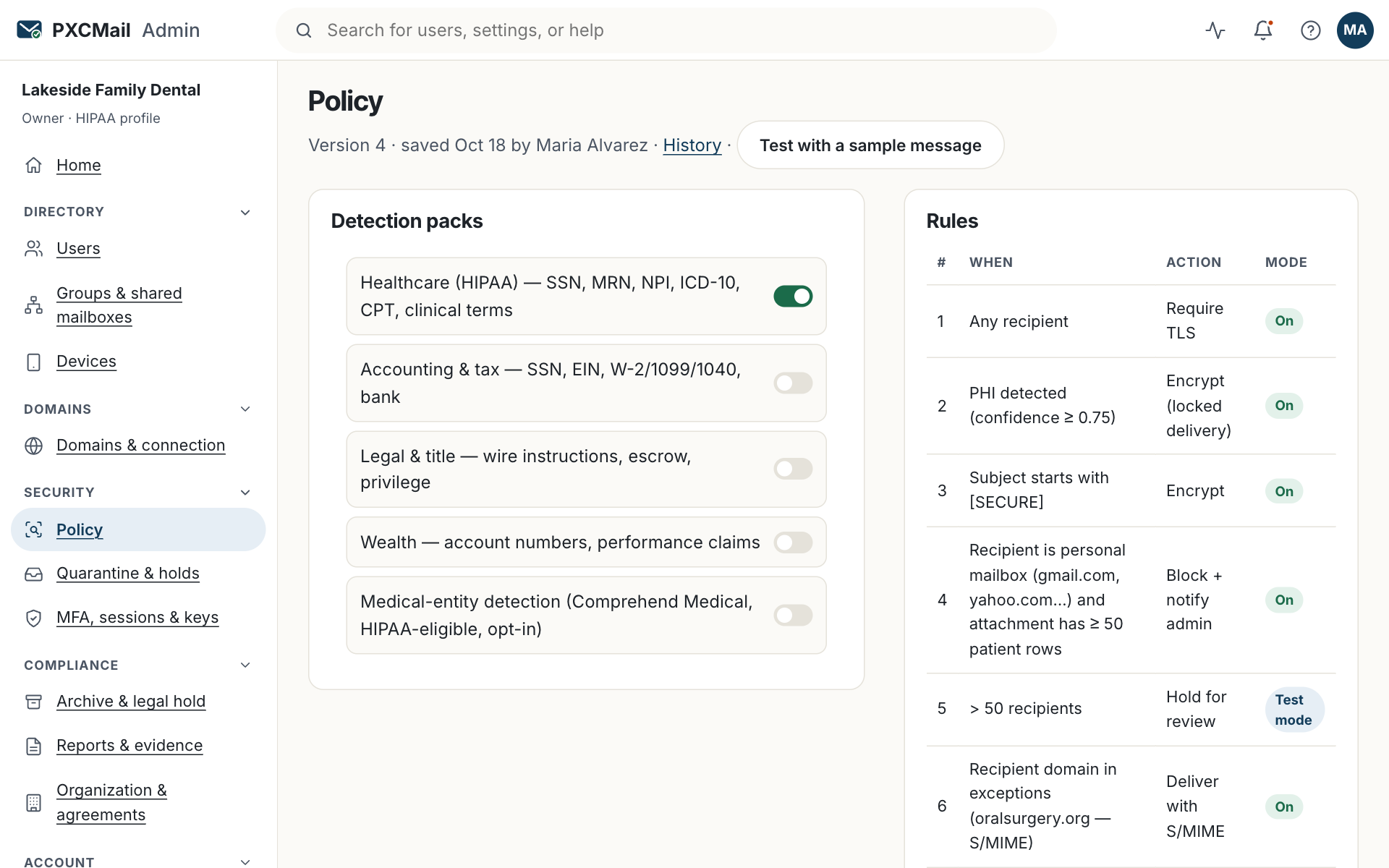
A policy is an ordered list of rules; each rule pairs a condition (what detection found, who sent it, who receives it) with one of five actions, deliver, encrypt, warn, hold or block, and every save creates a new version you can test first and roll back later.
Before you start
- Compliance, Admin or Owner role.
- Your industry profile is set; it turns on the matching detection pack and a default encrypt rule.
- Two or three sample messages (identifiers changed) to paste into the tester.
- A named person who may release held mail.
Steps
- Console → Policy → Packs. Your profile’s pack is on. Enable another if you handle that data too; a dental office that bills insurers may add the accounting pack.
- Policy → Rules → New. Pick the condition: a pack finding (SSN, MRN, W-2 fingerprint, wire instructions), a custom pattern or keyword list, attachment type, recipient domain, sender group or recipient count. Pick the action: deliver (TLS required), encrypt (locked delivery), warn (bounce to the sender with guidance), hold (supervisor release) or block. Optionally attach a notice, such as the wire-fraud “verify by phone” footer.
- Order the rules. The first match wins: block and hold above encrypt, encrypt above deliver.
- Policy → Exceptions. Add recipient domains that publish S/MIME or have a signed agreement, or internal groups. Exceptions cannot disable TLS and are logged.
- Test mode. Switch a new rule to test mode: it records what it would have done without acting. Use Test policy to paste a sample message and see the decision instantly.
- Save with a note. Policy → Versions shows a diff of each version and a one-click rollback.
Verify
Console → Reports → Detection shows findings per rule for the last 30 days with an estimated precision. A rule in test mode shows “would encrypt” counts; once they look right, take it out of test mode. The audit trail records every decision with the rule that made it.
Troubleshooting
- Too many warn bounces. Cause: a broad pattern (nine-digit numbers read as SSNs). Fix: raise the confidence threshold for that pattern, or change warn to encrypt so mail still goes out.
- A rule never fires. Cause: it is in test mode, or an earlier rule matches first. Fix: check the mode and the order.
- Held mail piles up. Cause: nobody owns the quarantine. Fix: assign a Compliance reviewer and see Review quarantine and held messages.
- An exception is not honored. Cause: the recipient domain was typed with a subdomain or the message had a second recipient outside it. Fix: exceptions apply when every recipient matches.
Example
Harbor Title starts with the legal & title pack, which encrypts anything containing wire instructions. Maria, the escrow officer, asks for two additions: a hold rule for outbound messages mentioning “wiring instructions” to a domain the firm has never emailed, released only by the office manager, and a custom pattern for Qualia file numbers so closing packages are encrypted even without an account number. Both run in test mode for a week; the report shows 14 would-be holds, all legitimate new buyers, so the hold rule is narrowed to messages that also contain an account number before going live.
FAQ
Does PXCMail use AI to decide?
No. Every rule is deterministic and the decision names the rule and pattern that matched. No AI reads your mail by default and nothing is trained on customer data.
Can staff override a decision?
They can force encryption with [SECURE]. No tag turns it off for detected content; only a reviewer can release a hold.
Does the policy apply to internal mail?
On Gateway, no; internal mail stays inside Google or Microsoft. On Hosted, internal mail is archived and subject to any rules you enable for it.
Related
- Custom patterns and keyword lists
- Handle false positives
- Review quarantine and held messages
- Detection & DLP
Still stuck? A human answers within 15 minutes on chat, 1 hour by email during business hours (24/7 for outages).