Send a secure message
Three minutes. Works from Outlook, Gmail, your phone or webmail.
Applies to: Gateway, Hosted
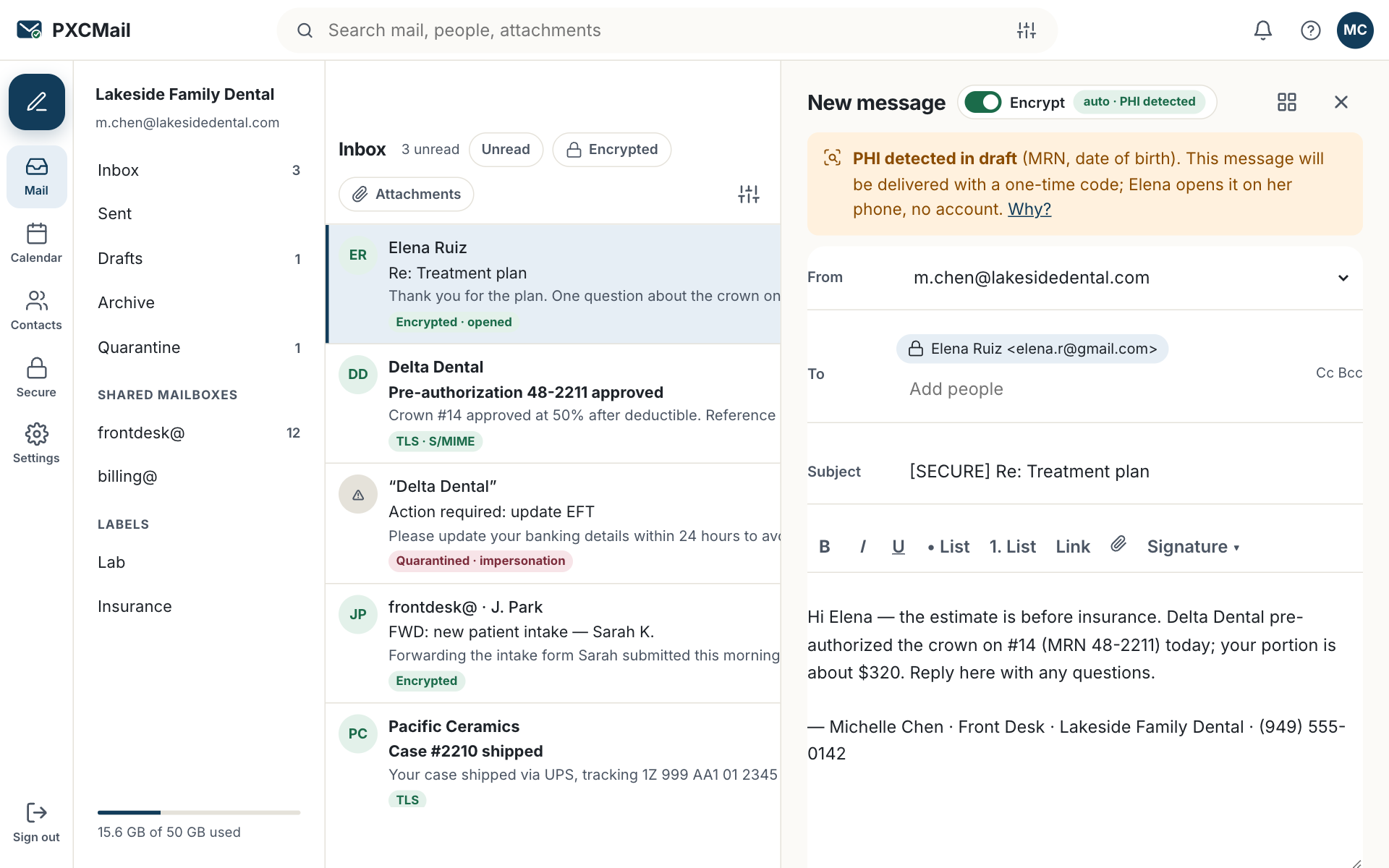
You send a secure message the same way you send any email; PXCMail locks it when detection finds sensitive content or when you type [SECURE] at the start of the subject, and the recipient opens it in a browser with a one-time code.
Before you start
- Your organization is connected (relay on Gateway, or a Hosted mailbox) and the policy has at least one encrypt rule; the industry pack turns one on by default.
- The recipient’s correct email address, and their mobile number if they will want the code by text.
- Attachments up to 35 MB travel in the email; larger files, up to 2 GB, must go through locked delivery.
Steps
- Let PXCMail decide. Write and send. Detection scans the body and attachments against your pack (identifiers, document fingerprints, clinical codes, wire instructions, custom patterns). A finding triggers your policy’s action: encrypt, warn, hold or block.
- Force it. Type
[SECURE]at the start of the subject, for example[SECURE] Your treatment plan. The tag is removed before delivery; the message is locked regardless of content. No tag turns encryption off for detected content. - The recipient receives a notification from your name and domain, requests a six-digit code by text or email, then reads, replies and downloads in the browser. See Help for recipients.
- Replies come back through the same page, locked, and land in your inbox and the archive.
- To withdraw a message, use Revoke or resend; the link stops working immediately.
Verify
Console → Archive & audit shows the message as “Locked · delivered”, then “opened” with the time of each open. Hosted users also get a delivery receipt in their inbox when the message is first opened. If the recipient publishes an S/MIME certificate, the record shows “S/MIME” instead; that is automatic.
Troubleshooting
- The recipient did not get a code. Cause: wrong number or address, or a carrier delay. Fix: they can request another code on the reading page or switch to email; codes expire after 10 minutes. If the details are wrong, revoke and resend.
- The message went out in plain TLS. Cause: no finding and no tag; TLS to the recipient’s server is the default. Fix: add
[SECURE], or ask your Compliance role to adjust the rule. See A message should have been encrypted but wasn’t. - The message bounced back with guidance. Cause: a warn rule fired. Fix: remove the flagged content or add the tag and resend; the bounce tells you which pattern matched.
- The message is “held”. Cause: a hold rule, for example more than 50 recipients. Fix: a supervisor releases or rejects it from Quarantine.
- The recipient says the link expired. Cause: 30 days passed (your admin can set 1–90). Fix: resend from the audit record.
Example
At Lakeside Family Dental, the front desk emails a treatment plan with the patient’s name, MRN and date of birth to the patient’s personal Gmail. Detection matches the healthcare pack, the policy says encrypt, and the patient gets a notification from frontdesk@. For a referral to a specialist with nothing the pack recognizes, the hygienist types [SECURE] anyway because the X-rays are 60 MB; the file goes through the locked page. Both appear in the audit trail with method and opens.
FAQ
Is the subject line encrypted?
No. The subject appears in the notification and in your sent copy. Keep names and identifiers out of it; “Your plan from Lakeside” is enough.
Can I send a locked message to several people?
Yes, up to 100 recipients per message. Each gets their own link and code, and each open is logged separately.
Does the recipient need anything installed?
No account, no app. Sign-in with Google, Apple or Microsoft for recipients is on the roadmap (ROADMAP).
Related
- Help for recipients
- Revoke or resend a secure message
- A message should have been encrypted but wasn’t
- Encrypted delivery
Still stuck? A human answers within 15 minutes on chat, 1 hour by email during business hours (24/7 for outages).