Set up iPhone, Android and Outlook
Two minutes per device. Address and password are usually all that is needed.
Applies to: Hosted
A Hosted mailbox connects to Outlook, iPhone, iPad and Android as an Exchange account: type the address and password, approve the MFA prompt, accept the device policy, and mail, calendar, contacts and shared mailboxes appear without any server names.
Before you start
- The user has completed MFA enrollment from the welcome email. Devices cannot be added before that.
- The phone has a passcode and encryption on (iPhones are encrypted whenever a passcode is set). The device policy refuses a phone without them.
- Each user may enroll up to 10 devices.
Steps
- Outlook (Windows/Mac): File → Add Account → type the address → Connect. Sign in, approve MFA. Mail, calendar, contacts and any shared mailboxes the user belongs to appear after the first sync.
- iPhone/iPad: Settings → Mail → Accounts → Add Account → Microsoft Exchange → address → Sign In → approve MFA → accept the device policy (passcode, encryption, auto-lock) → choose Mail, Contacts, Calendars.
- Android: Gmail app → Add account → Exchange and Office 365 (or the built-in Mail app → Exchange) → sign in → accept the device administrator policy. Choose Calendar and Contacts in the account’s sync settings.
- Other IMAP clients (Apple Mail on an older Mac, Thunderbird, a scanner): create an app password; IMAP
imap.pxcmail.com:993, SMTPsmtp.pxcmail.com:465. - Webmail needs no setup: sign in at the address in the welcome email with password and MFA.
Verify
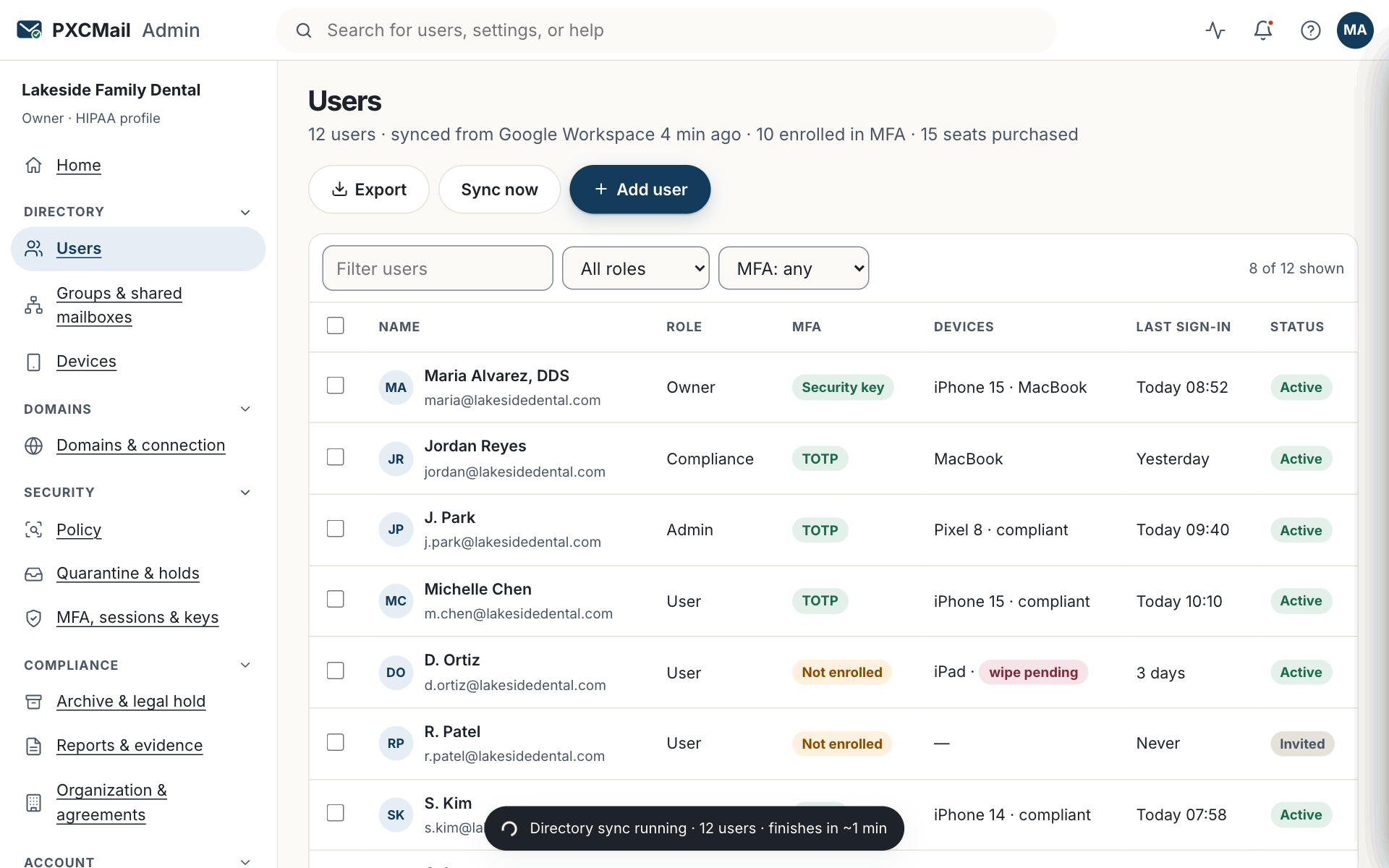
Console → Users & devices → open the user → Devices. The new device is listed with its model, “Policy: compliant” and a last-sync time within the last few minutes.
Troubleshooting
- “Cannot verify account” or “Unable to connect.” Cause: the username was typed as a short name, or a server name was entered by hand. Fix: use the full address as the username and leave the server field blank so autodiscover fills it in.
- The phone shows the account but no mail arrives. Cause: the device policy was dismissed instead of accepted. Fix: open the account in Settings and accept the policy; until then the device appears as non-compliant in the console.
- MFA prompt loops on Outlook. Cause: a cached credential from the old provider. Fix: remove the old account from Windows Credential Manager or macOS Keychain and add the account again.
- Calendar not syncing on Android. Cause: Calendar is off in the account’s sync settings. Fix: Settings → Accounts → the Exchange account → turn Calendar on.
- An IMAP client rejects the password. Cause: the user entered their normal password. Fix: IMAP clients require an app password, never the account password.
Example
Ortiz CPA moves nine people to Hosted on a Friday afternoon. Daniel Ortiz adds his iPhone in Settings in under two minutes and accepts the six-digit passcode policy already on the phone. The two preparers use Outlook on Windows: address, password, MFA, done; the shared returns@ mailbox appears on its own. The office’s document scanner cannot do MFA, so the admin creates one app password on a dedicated scanner@ user and enters that in the scanner’s SMTP settings. By Monday the console lists every device as compliant.
FAQ
Can staff use the Outlook mobile app instead of the built-in mail app?
Yes. Outlook for iOS and Android adds the account as Exchange and accepts the same device policy. Pick one app per phone so you do not enroll the device twice.
Does PXCMail manage the whole phone?
No. The policy applies to the mailbox account only: passcode, encryption, auto-lock and the ability to wipe the mailbox. Photos, apps and other accounts are untouched. See Device policy and remote wipe.
Are there Outlook or Gmail add-ins?
Add-ins are on the roadmap (ROADMAP). Today the policy runs on the server, so nothing needs to be installed in the mail client.
Related
Still stuck? A human answers within 15 minutes on chat, 1 hour by email during business hours (24/7 for outages).