Invite users and assign roles
Seats follow your people: add them by sync or by hand, give the right role, and offboarding is one click.
Applies to: Gateway, Hosted
Users come into PXCMail either by syncing your Google Workspace or Microsoft Entra directory or by typing them in, and each one gets a role that limits what they can see and change in the console.
Before you start
- Owner or Admin role.
- For directory sync: a Google Workspace super-admin, or a Microsoft Entra global admin who can grant consent. Sync needs read access to users and groups only.
- A short list of who needs more than the User role. Most practices need one Owner, one Admin and one Compliance person, who may be the same human in a small office.
Steps
- Console → Users & devices → Add users. Choose Sync from Google/Microsoft (recommended) or Add manually.
- For sync, approve the consent screen. Users appear within minutes. New hires are added when they appear in your directory; accounts you remove or suspend there are disabled in PXCMail within 15 minutes. Groups come across too and can be used in policy rules.
- For manual entry, type name and address, one per line; each person gets a welcome email.
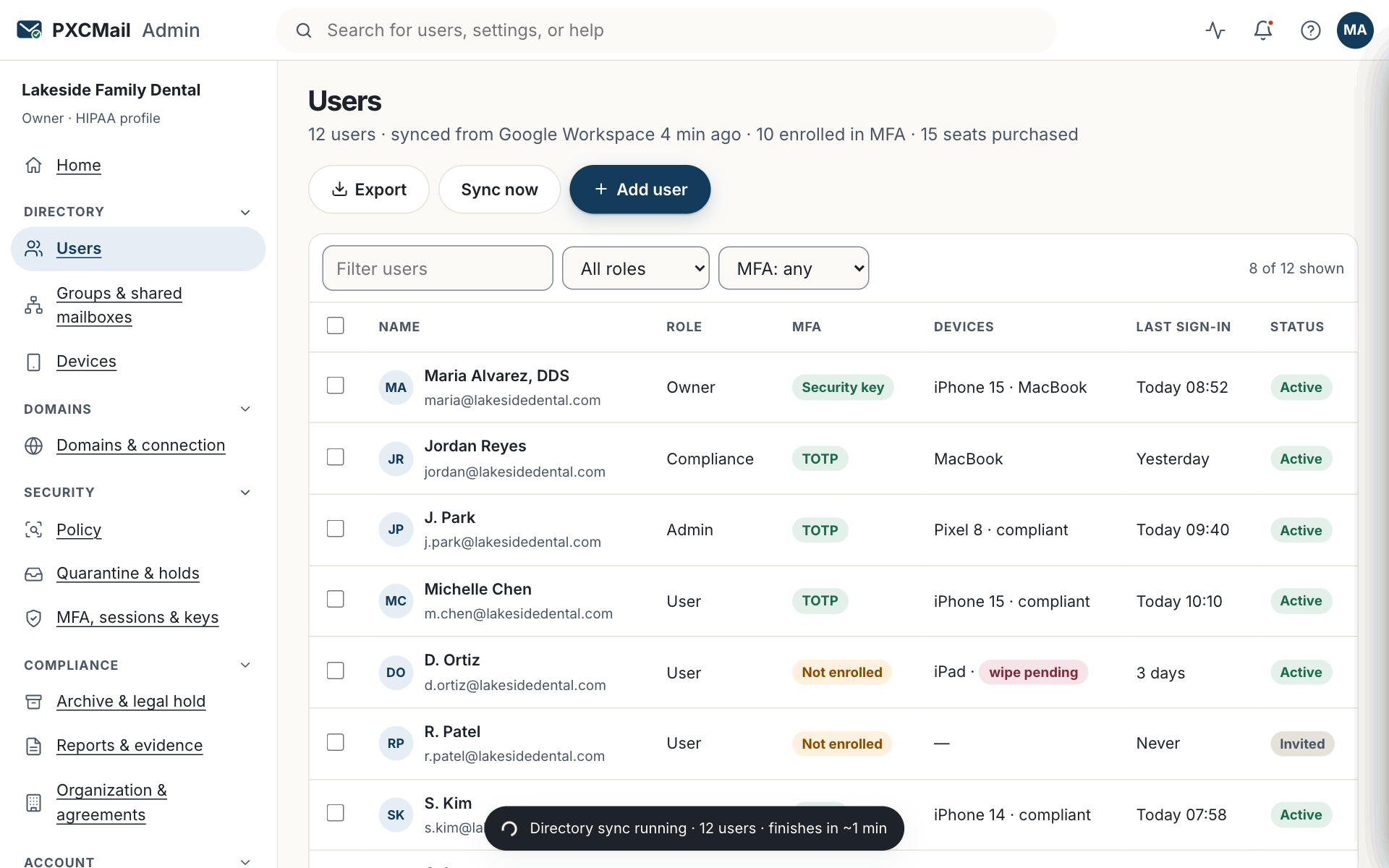
- Set roles from the user row: Owner (billing, agreements, everything), Admin (configuration, users, policy, devices), Compliance (read the audit trail and archive, manage holds and exports; no configuration changes), Support (metadata only, no changes), User (own mailbox and devices on Hosted). The full matrix is on the console page. A Partner role exists for an MSP that manages you through the partner console.
- Each user enrolls MFA from the welcome email; on Hosted the email also carries device setup instructions.
Verify
Users & devices shows every person with role, MFA status and source (synced or manual). The seat count at the top matches the number of enabled users; Billing shows the same figure.
Troubleshooting
- Seat count differs from your directory. Cause: shared mailboxes, aliases, groups and disabled users are not seats; a directory may also contain service accounts. Fix: exclude service accounts from the synced organizational unit or group.
- Someone cannot enroll MFA. Cause: the welcome link expired. Fix: user row → Reset MFA; they get a fresh link.
- A synced user is missing. Cause: they sit outside the organizational unit or group chosen for sync. Fix: widen the scope under Users & devices → Sync settings, or add them manually.
- Two Owners want to be removed and there is nobody left. Cause: an organization must keep at least one Owner. Fix: assign Owner to someone else first.
- A departed employee is still listed. Cause: manual accounts are not touched by sync. Fix: offboard the user; the mailbox stays under retention.
Example
Ortiz CPA syncs its Microsoft Entra directory: nine people appear, including a scanner@ service account, which the admin moves out of the synced group so the count reads 9 seats. Daniel Ortiz is Owner. The office manager is Admin and also Compliance, so she can both run the console and pull the quarterly report for the WISP. The two preparers and the rest are Users. Coastal IT Partners, the firm’s MSP, is given the Partner role and sees DNS health and seats, not mail.
FAQ
Does a user on Gateway need to do anything?
Only enroll MFA if they will use the console. Gateway users keep their Google or Microsoft mailbox; the seat exists so policy and audit are attributed to them.
Can someone hold two roles?
Yes. Admin plus Compliance is common in small offices. Owner includes everything.
Is there SCIM provisioning?
Not yet; SCIM is on the roadmap (ROADMAP). Directory sync covers creation and removal today.
Can we invite an outside accountant or attorney as a user?
Only if they are at your domain. People outside your organization receive locked messages instead; they never need an account.
Related
- Multi-factor authentication
- Offboard a user
- Mailboxes, aliases, shared mailboxes and groups
- Console roles
Still stuck? A human answers within 15 minutes on chat, 1 hour by email during business hours (24/7 for outages).